Skip to content

Business QR Code Stand Generator

15 credits

Add your links and your shop name — get a market-stall stand with two or three QR codes, an NFC tap plate, a shop sign and little plants, ready to print.

Sign

Sign

Long text gets smaller to fit.

QR codes

QR 1 · Follow usQR 2 · Watch us
Number of QR codes

Your QR codes and NFC tag link straight to the addresses you enter — EVERY1MAKER doesn't redirect, track or host them. Scan each one on screen before you download, and keep those pages working. QR Code is a registered trademark of DENSO WAVE INCORPORATED.

NFC tap plate

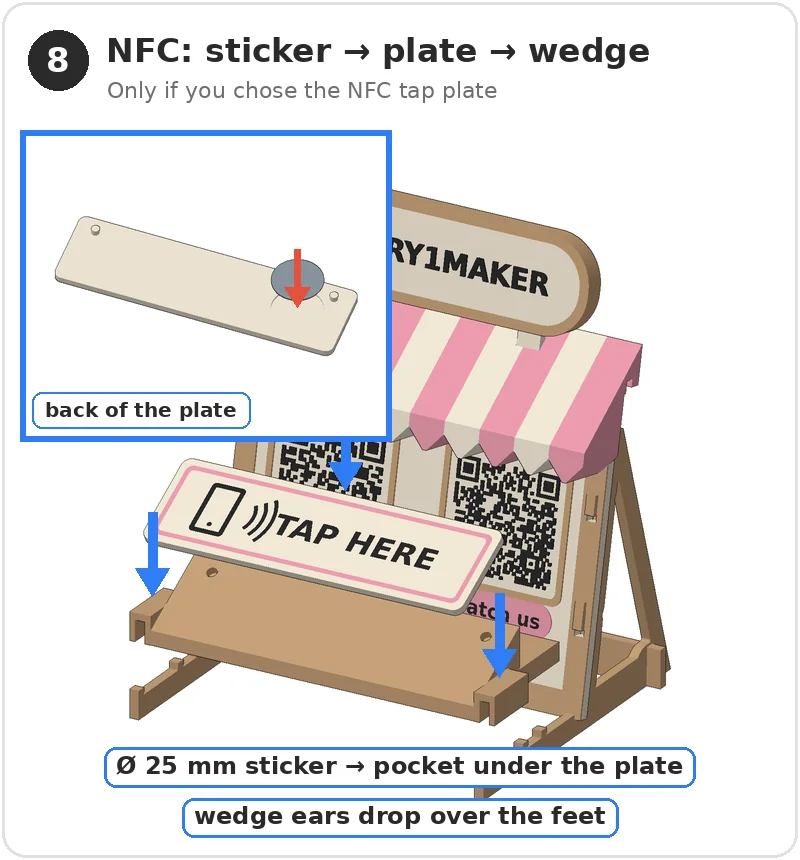
Use an NFC sticker Ø 25 mm (NTAG213 / 215). Write your link with any free NFC writing app.

Leave Line 2 empty for one line. Long text gets smaller to fit.

Plants

Two pots with leaves, one on each foot.

Colours

Main · Main
Text & QR · Text & QR
Accent · Accent
Frame · Frame
Plants · Plants

Preview colours are for visualisation only. After downloading, assign your filament colours in your slicer. With a text sign every plate uses 4 colours or fewer; a logo adds its picture colours to the sign.

Licence questions

Can I use the stand at my own stall or shop?
Yes. Using the stand at your own stall, shop or business is Personal Use — any plan covers it, including Credit packs.
Can I sell printed stands to other businesses?
Yes, with Maker Pro: selling printed stands to other businesses is a commercial use of physical products.
Can I sell or share the files?
Want to sell or share the files themselves? Contact us.

Creating your model…

Your model will be ready in a moment

Before you download, scan each QR code on screen with your phone to check it opens the right page.

3MF Recommended

Works in all modern slicers.

STL

The classic 3D printing format.

Re-downloads are free.

How to assemble

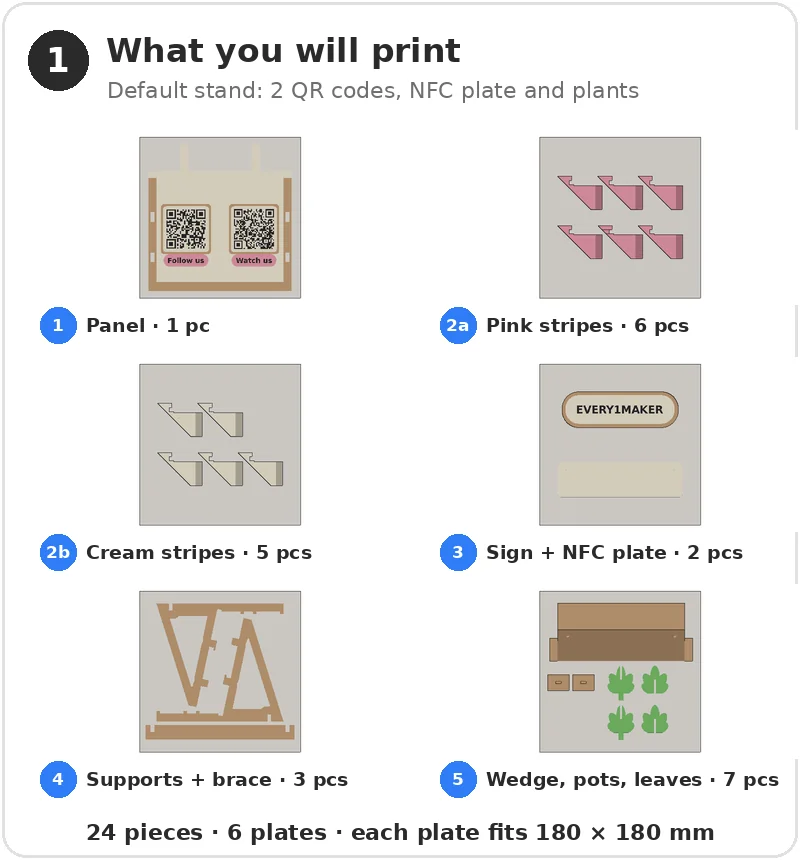
  1. Step 1 (opens the picture larger): What you will print: 6 build plates, 24 pieces.
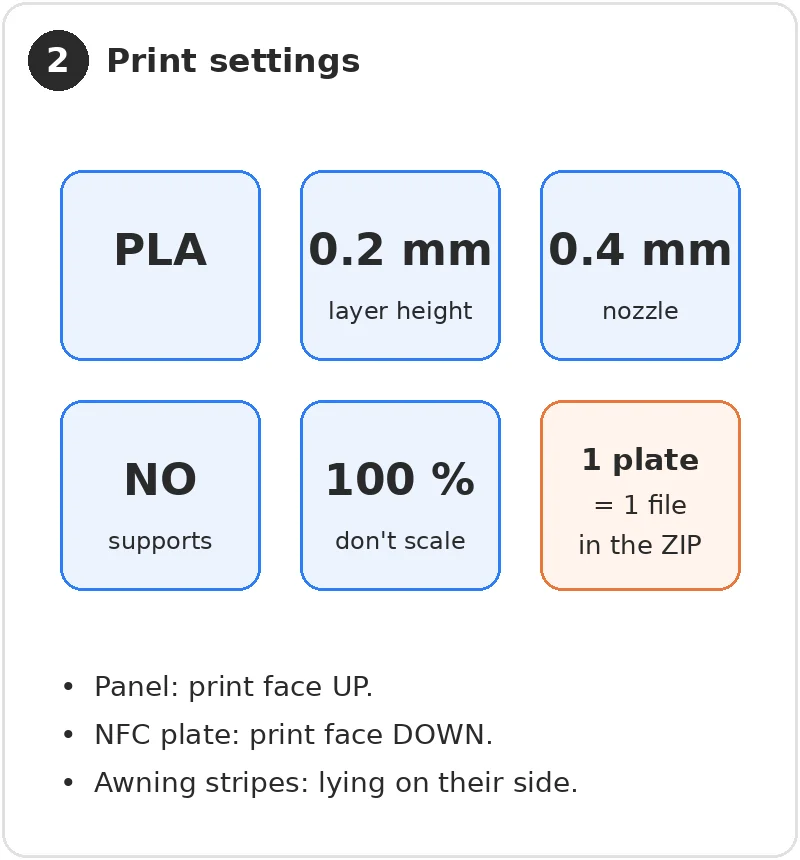
  2. Step 2 (opens the picture larger): Print settings: PLA, 0.2 mm layers, 0.4 mm nozzle, no supports, 100 % scale.
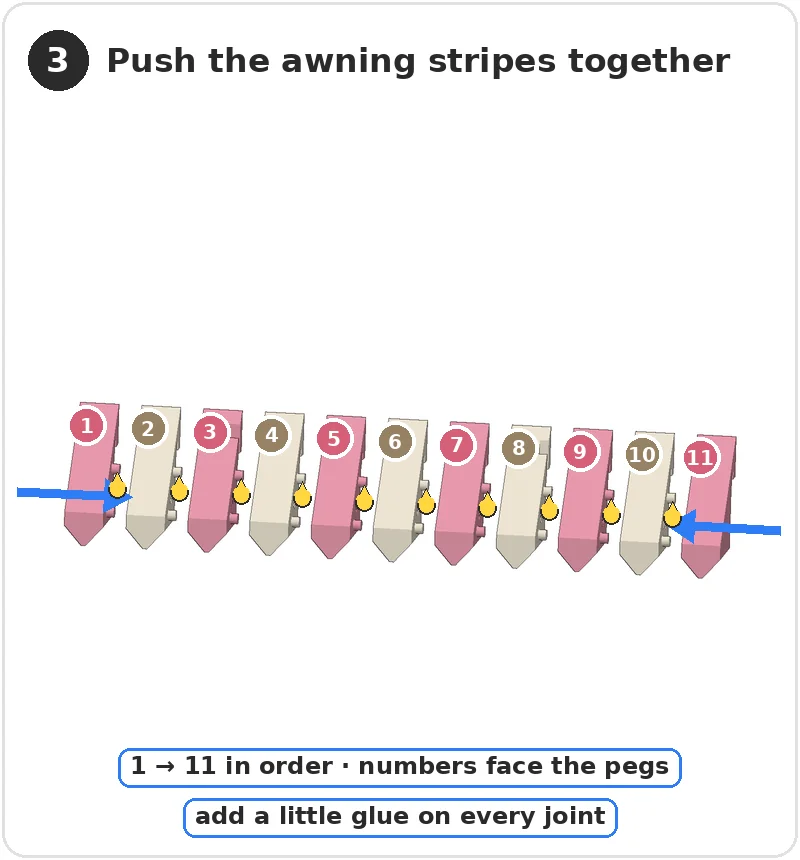
  3. Step 3 (opens the picture larger): Push the 11 awning stripes together in order, with a little glue on every joint.
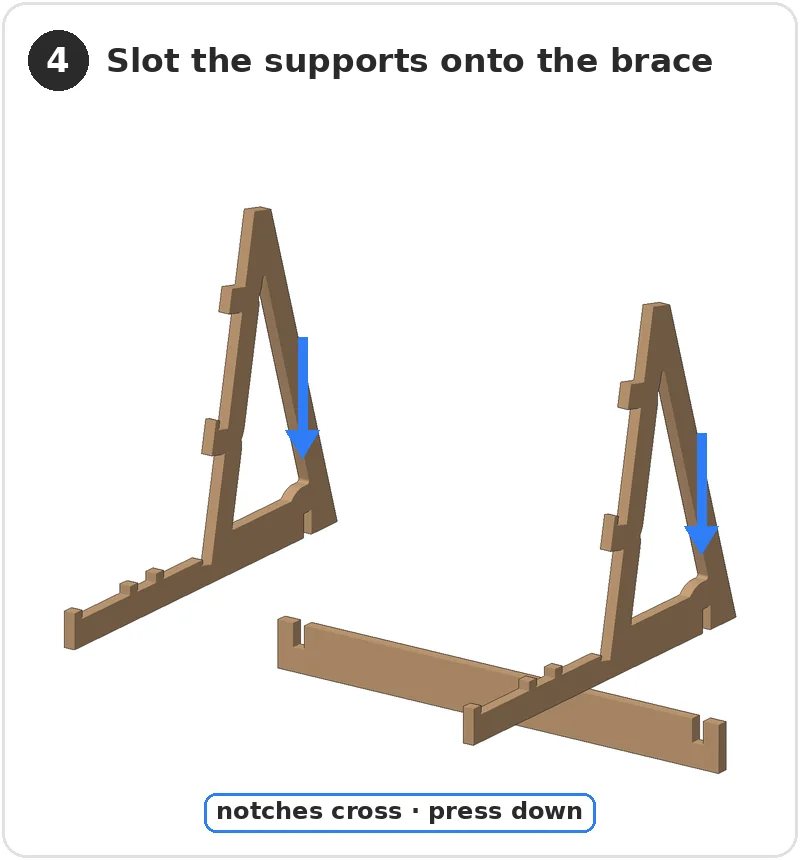
  4. Step 4 (opens the picture larger): Slot the two supports onto the brace.
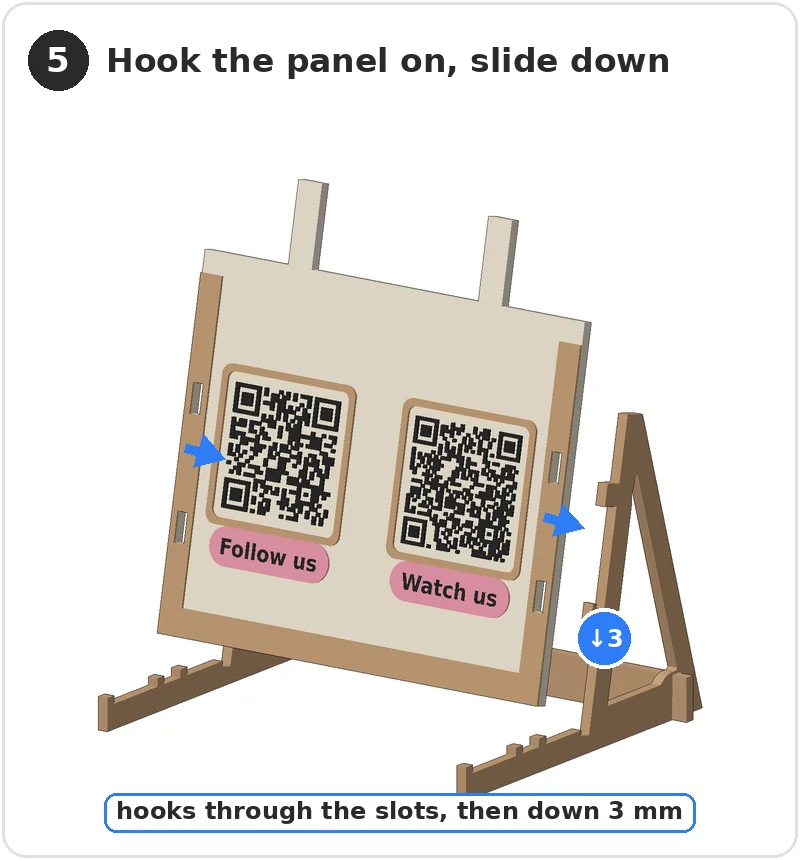
  5. Step 5 (opens the picture larger): Hook the panel onto the supports and slide it down 3 mm.
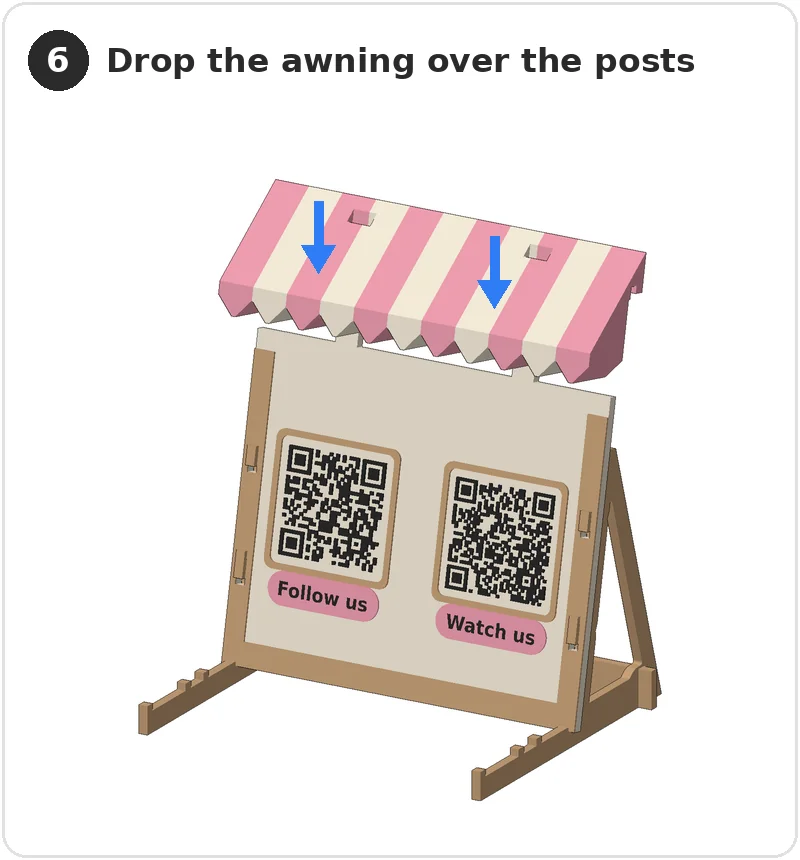
  6. Step 6 (opens the picture larger): Drop the awning over the two posts.
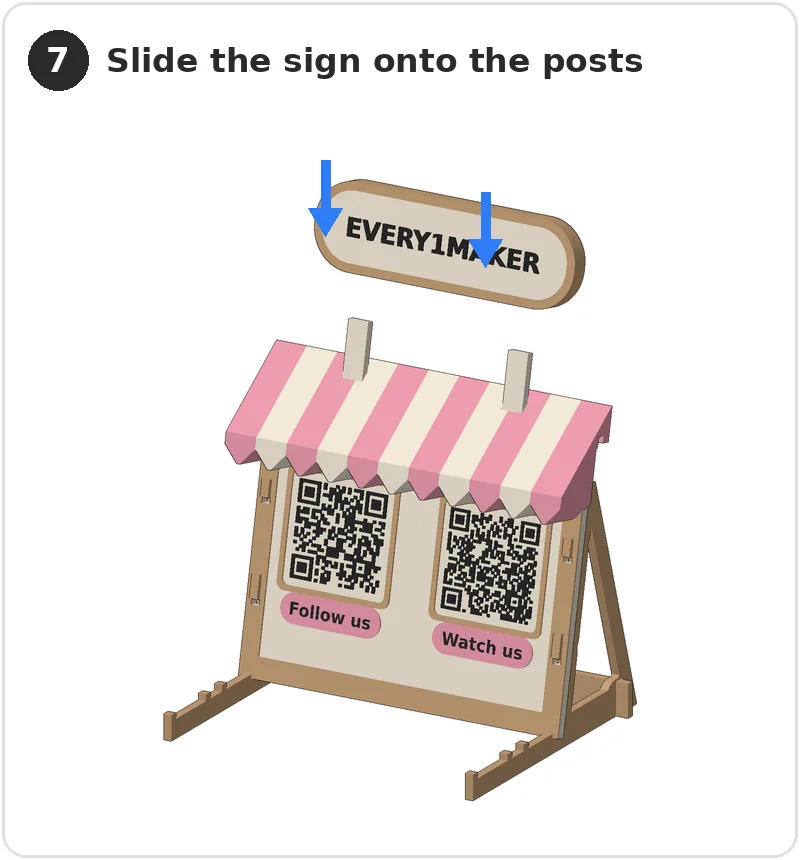
  7. Step 7 (opens the picture larger): Slide the sign onto the posts.
  8. Step 8 (opens the picture larger): NFC: put the 25 mm sticker in the pocket on the back of the plate, push the plate onto the wedge, drop the wedge over the feet.
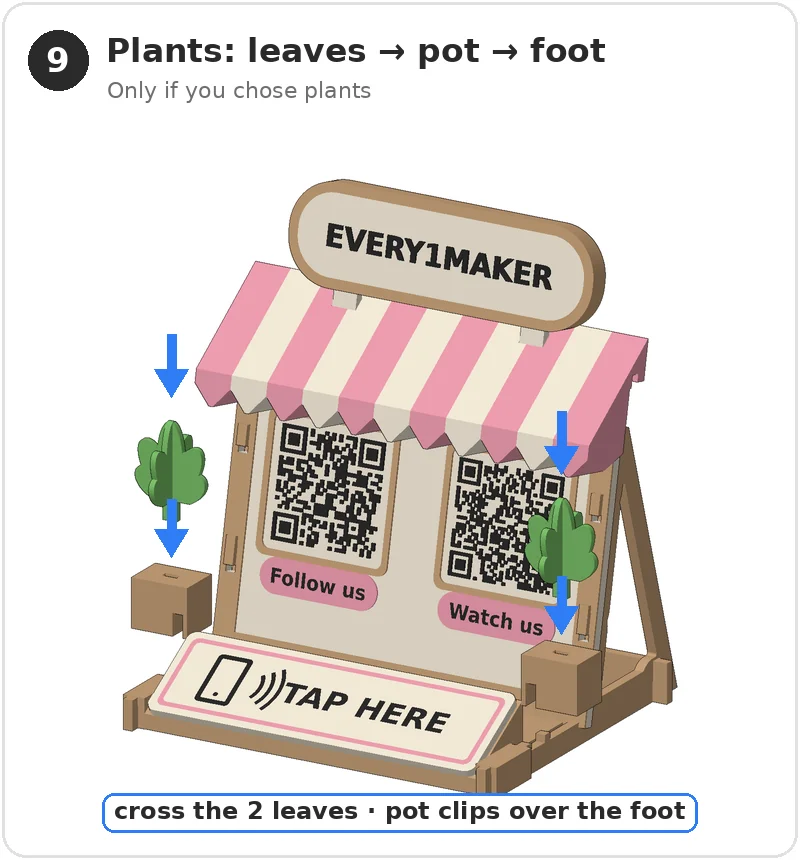
  9. Step 9 (opens the picture larger): Plants: cross the two leaves, push them into the pot, clip the pot over the foot.
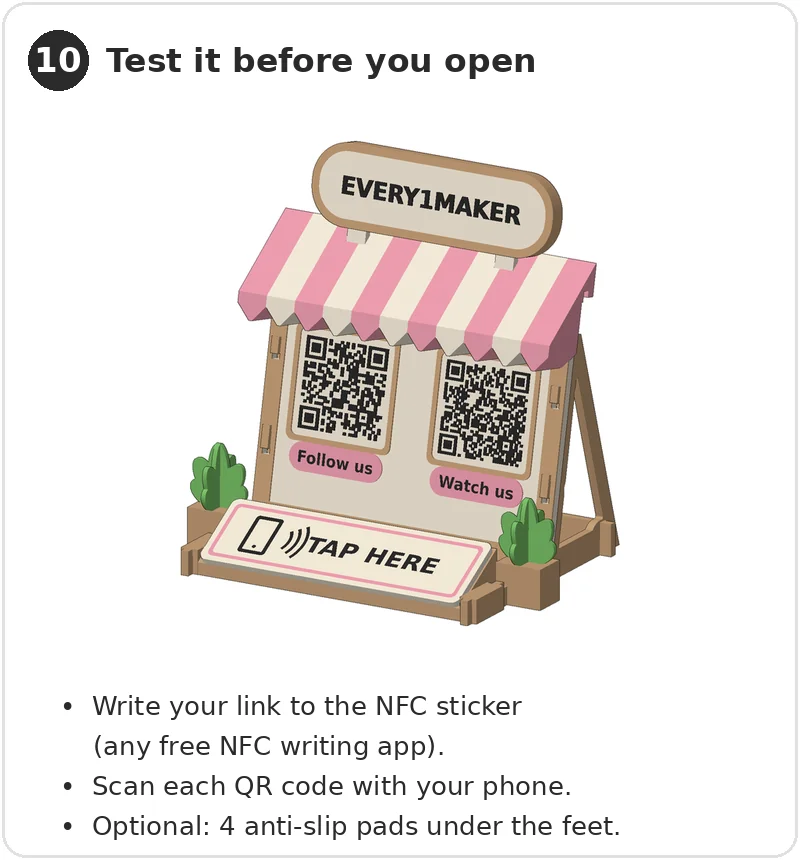
  10. Step 10 (opens the picture larger): Write your link to the NFC sticker, scan each QR code, and optionally add anti-slip pads.

Download the assembly guide (PDF)